
Invite Parent/Guardian
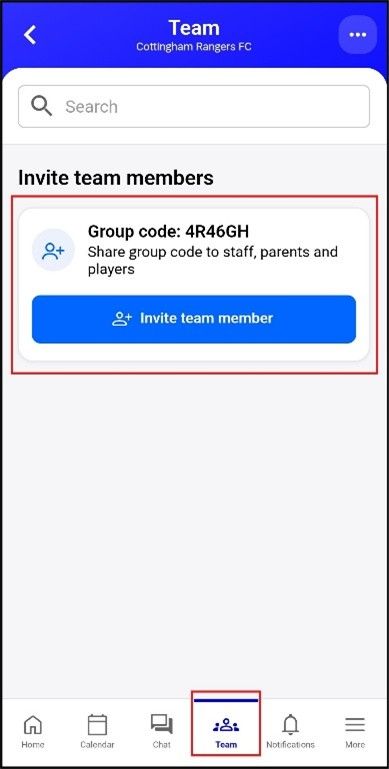
- In the 360Player select you team
- Select Invite team member
- Select ‘Share Invite link’ or ‘Copy invite code: xxxxx’
- Send the code the code to the parent.
** if the player is under the age of 18, a PARENT or GUARDIAN must complete the signup process for the child **
Only ONE parent should create an account for a child.
Other Parents or Guardians can connect later.
Parent Account Creation Process
- PARENT/GUARDIAN Download 360Player (App Store/Google Play)
- Select ‘Create Account’
- Enter the group code – See Invite Parent/Guardian section above
- Confirm this is the correct group you want to join and press continue
- Select ‘I’m a parent to a player’ and press continue
- Fill in the details as yourself (The Parent) and press continue
- Confirm you are a parent to a player and press continue
- Select ‘sign up with email’
- Fill in the email and password details, press ‘create account’
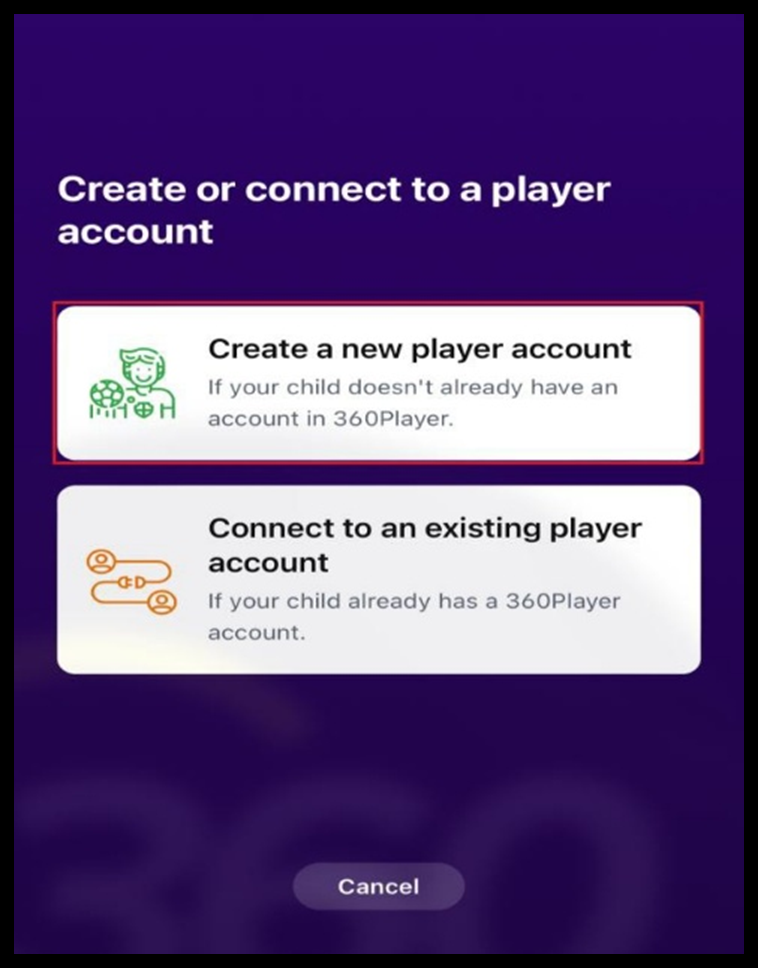
Parent to Create the Player Account
- Select ‘Create a new player account’
- Enter your child’s details and press continue
- Enter your child’s email and password (this email will need to be different to your parent account email) or create a player account without a login
- Select take me to my new team and fill in the additional, club-specific information (Pay attention to Subscription Options and Payment Date Selection as these indicate to the club how and when to charge.
Connecting additional Parent/Guardians/Family member accounts
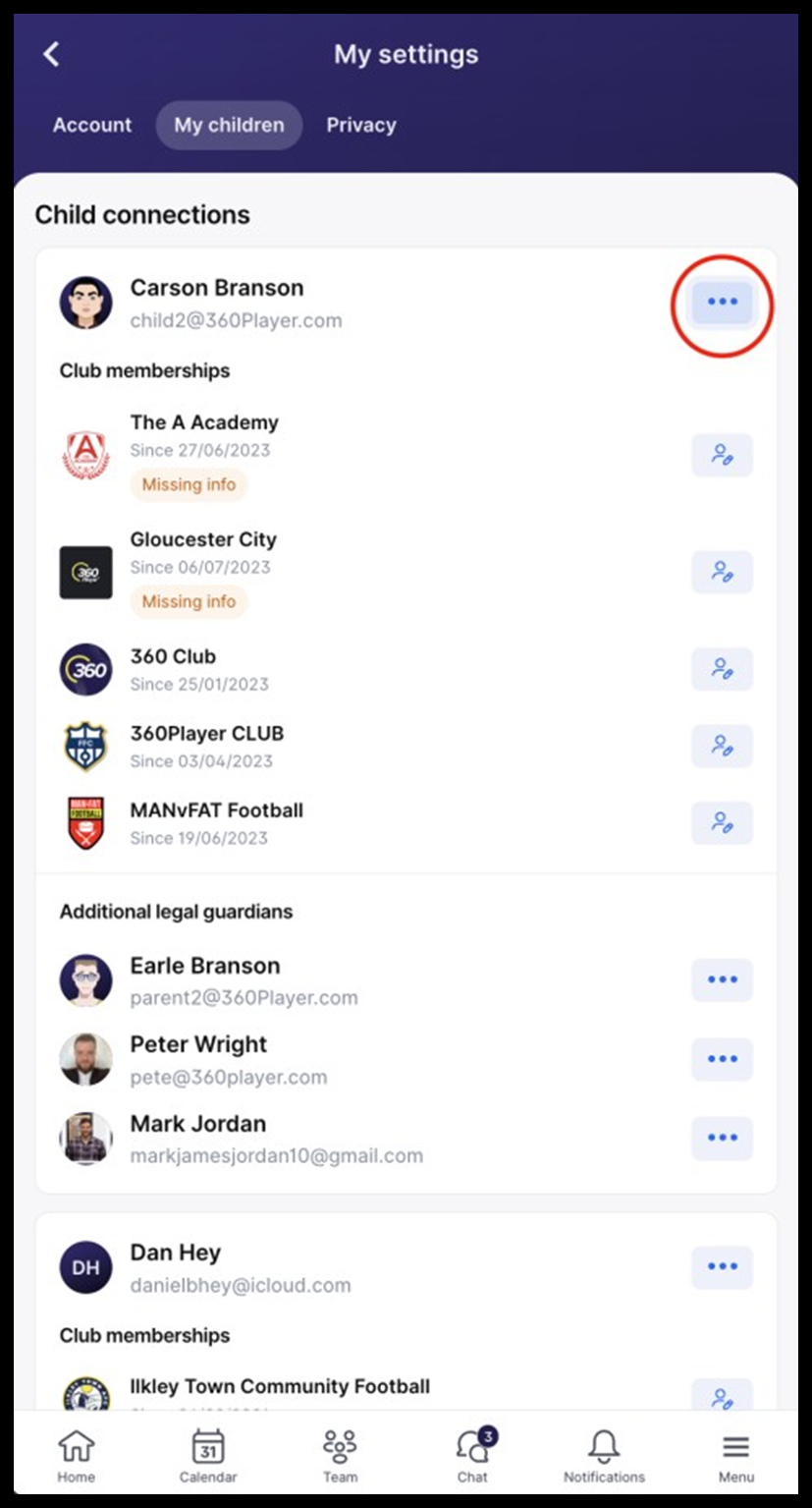
- After you have signed up Parent 1 and the child, please navigate to the ‘Menu’ button on the bottom right of the screen.
- Select ‘Account Settings’
- Tab across at the top to the ‘My Children’ tab
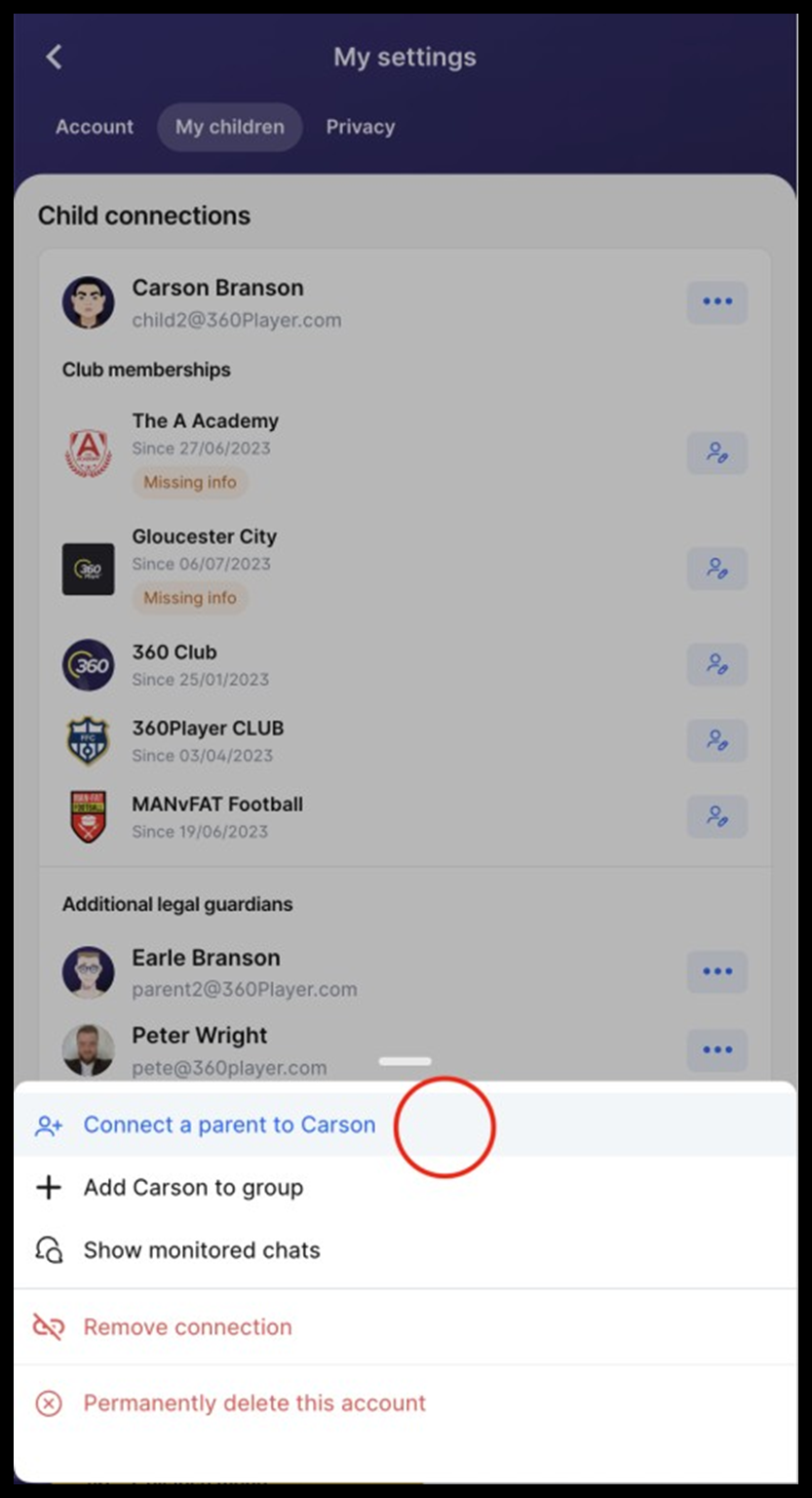
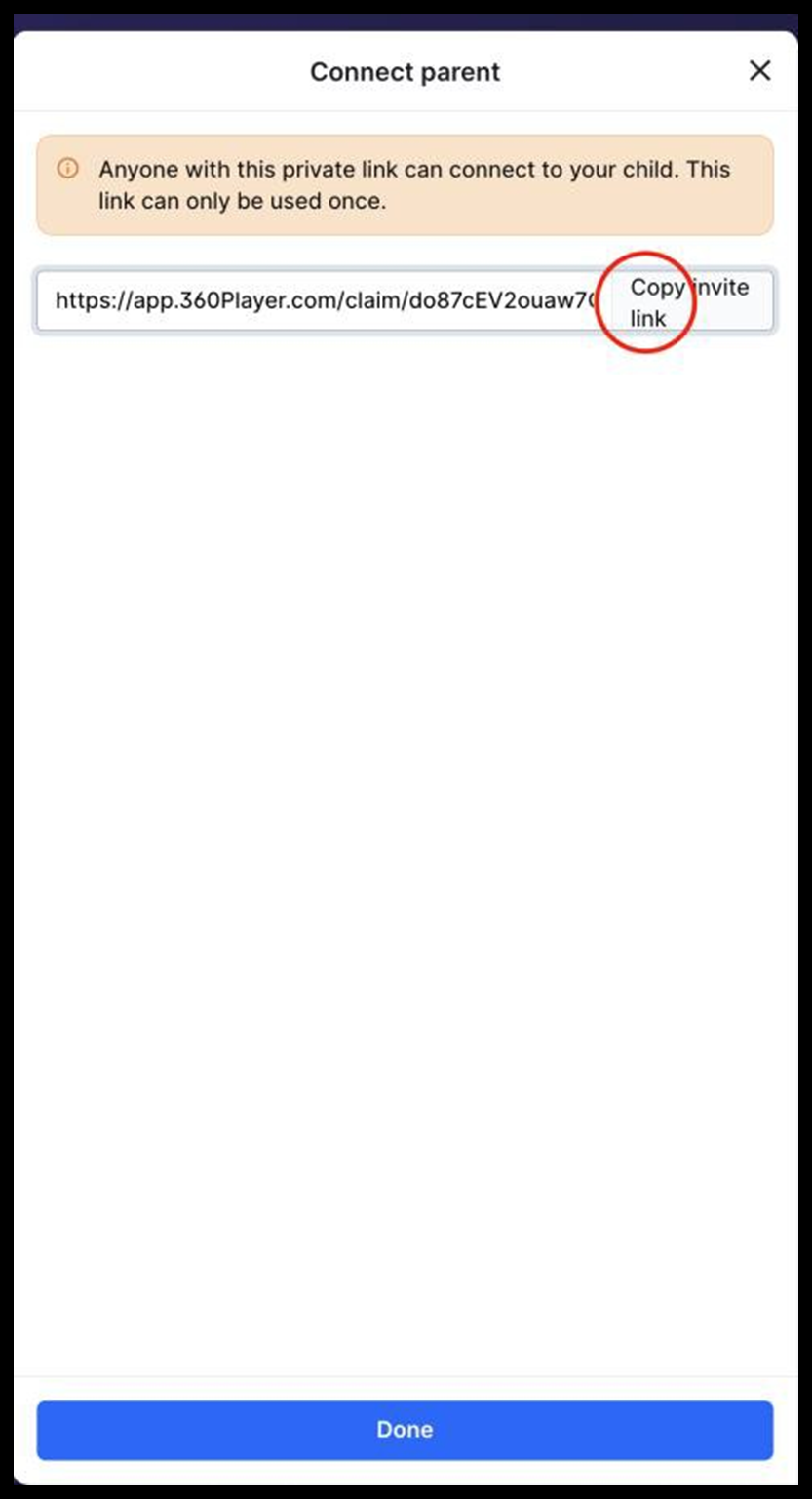
- Select the three dots next to the player’s name and then ‘Connect a parent to ____’
- Generate an invite link and send it to the additional members of the family
- Additional family member clicks on the invite link and creates their additional family member account.
Please note: Once a player has been registered with your team, you must inform the club so that their subscription and league registration can be processed.
Add additional players
- Select the ‘menu’ button in the bottom right corner
- Select ‘Account Settings’
- Tab over to the ‘my children’ tab
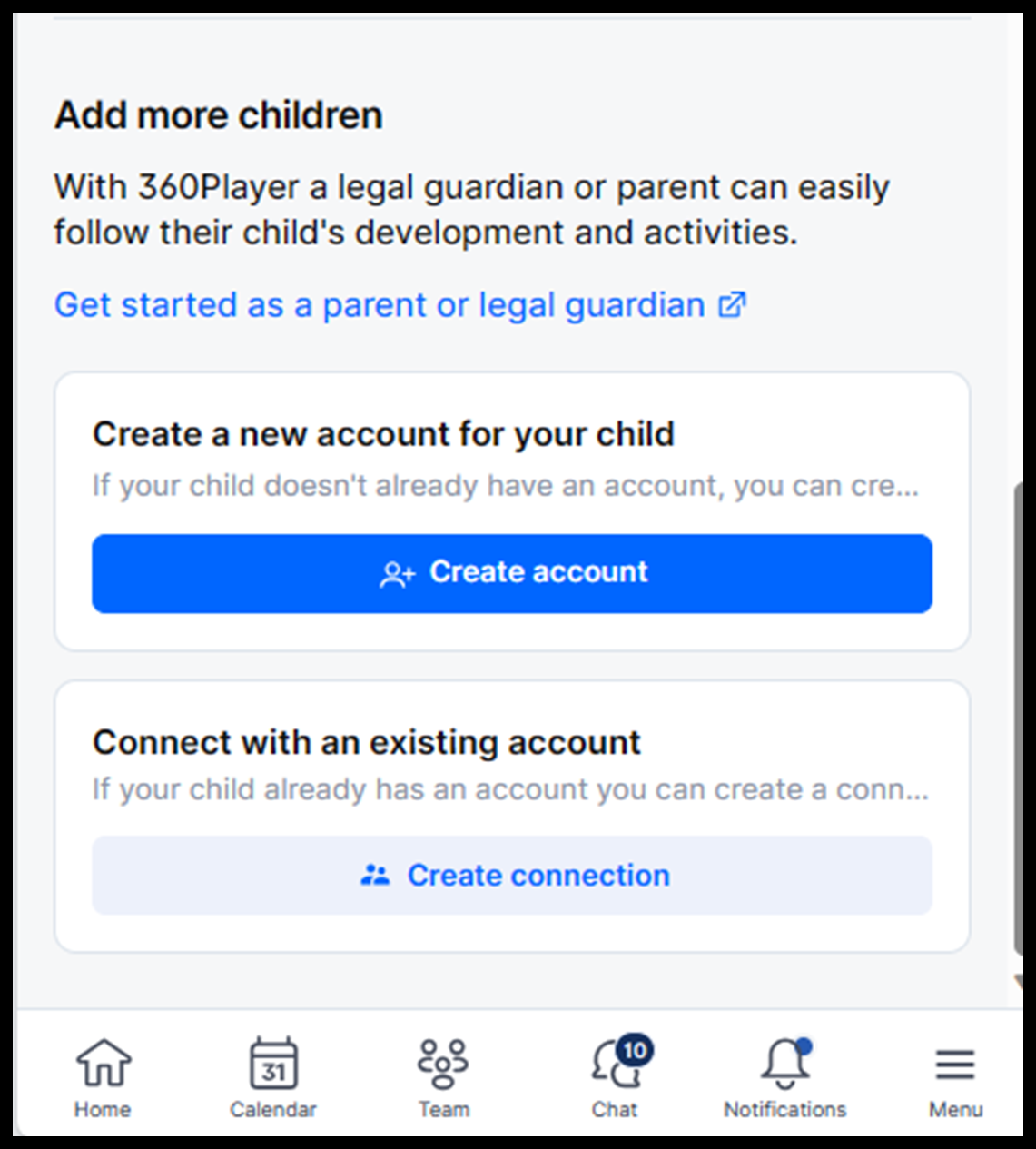
- Scroll to the bottom and select ‘Create Account’
- Enter the relevant group code
- Enter the additional child’s information and continue
- Decide whether you are solely managing their account or not, and then press continue
- If you are creating an email and password for your child, make sure it is different to any emails used before
Fill in the additional information
Additional information
When completing your child’s profile, please ensure that all fields are fully completed. Pay particular attention to the following sections:
Cottingham Rangers Subscription Options
This field tells the club how much will be paid each month in subscriptions. Please select the option that best matches your child’s participation:
- Monthly Subs – GBP 25.00
For players who will train and play matches. - Monthly Subs Additional Child – GBP 14.00
For players who have a sibling already registered with Cottingham Rangers. These players may train and/or play matches. - Under 6 Academy and Training Only – GBP 17.00
For players who will attend training sessions only.
Payment Date Selection
This field indicates your preferred date for monthly subscription payments to be collected by Cottingham Rangers. Please choose one of the following options:
- 1st of the month
- 15th of the month
