
How The Gaming Events Work
For each gaming event:
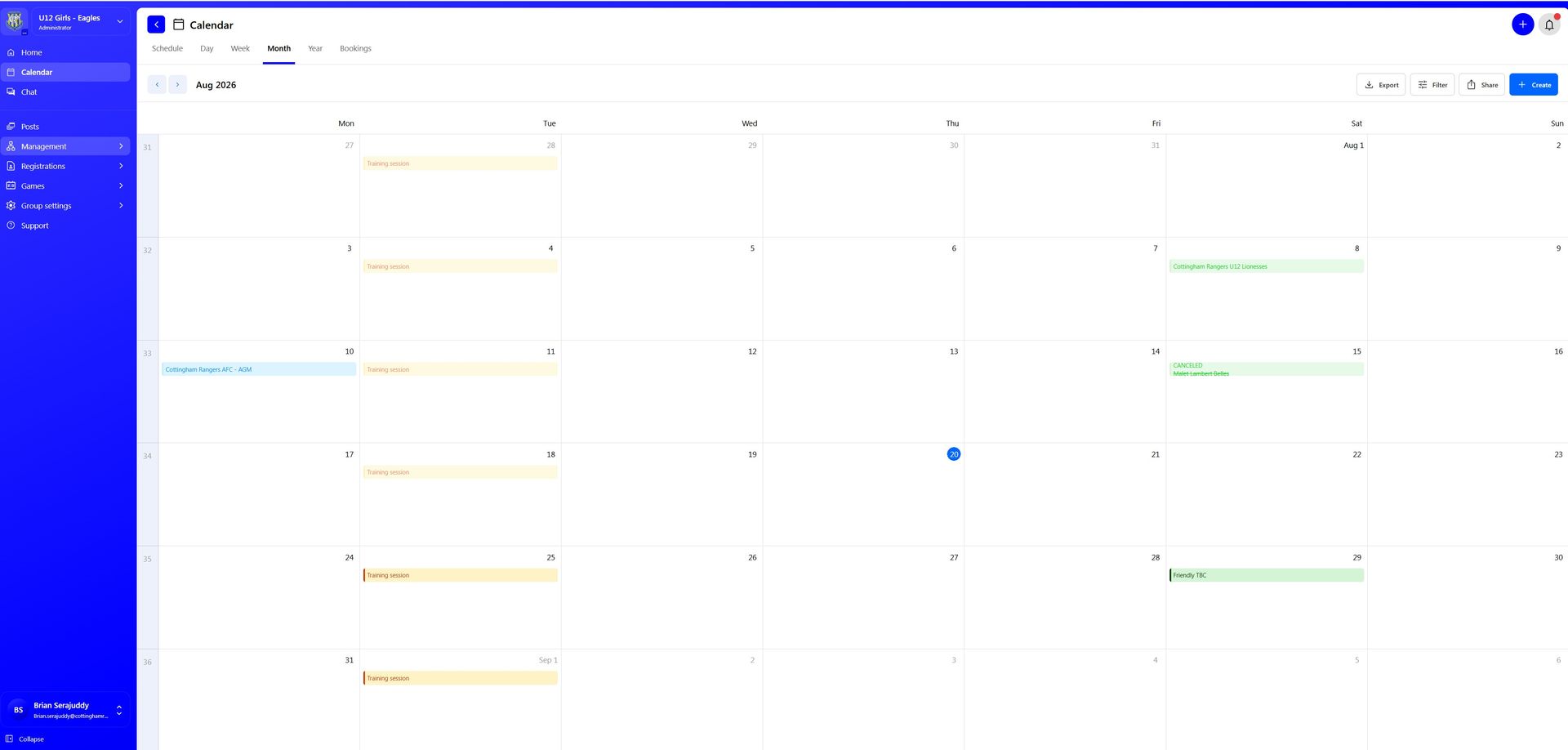
- The team’s match day slot is already scheduled.
- The pitch/resource is allocated centrally, initially as a place holder and then the real pitch will be allocated a few days before once the University have confirmed the pitch.
- No coaches or players are invited to these events, this is upto the manager to manually invite the players, it is recommended that reminders are configured to be sent out on a regular basis.
- Parents and coaches are asked to respond to say whether the player is attending.
This means coaches should not need to manually create match day events unless a match is changed, cancelled or added outside the normal schedule.
Please note that it is the coaches responsibility to add away games to the calendar.
What Coaches Need To Do
Coaches should use 360Player to check player availability before each match.
All coaches are asked to:
- Use the home match events already created in 360Player.
- Check availability before matches.
- Encourage parents to respond.
- Record attendance where possible.
- Avoid creating duplicate match events.
- Tell the club if a match is cancelled or moved.
- Use the information fairly and responsibly.
- Support the club in making 360Player the consistent system across all teams.
Before matches, coaches should:
- Open the upcoming matchevent.
- Review who has responded as attending.
- Review who has declined.
- Check who has not yet responded.
- Plan the match based on the expected numbers.
- Follow up with parents where needed.
- Make sure enough coaches/adults are available for the number of players attending.
- Mark attendance accurately after the match where possible.
The aim is not to create extra admin for coaches. The aim is to make training easier to manage and give everyone better visibility.
Checking Who Is Available For Matches
Suggested process:
- Open 360Player.
- Go to your team.
- Open the calendar or events section.
- Select the next match.
- Check the availability responses.
- Note who is attending, unavailable or has not responded.
- Use the numbers to prepare for your match.
Where parents have not responded, please encourage them to do so. Knowing the numbers in advance helps coaches prepare for the match.
Marking Attendance
Where possible, coaches should mark who actually attended the match.
This is important because availability and attendance are not always the same. A player may say they are attending and then not turn up, or may attend without responding.
Accurate attendance records help the club and coaches understand:
- Which players are regularly attending matches.
- Which players may need support or follow-up.
- Whether team numbers are healthy.
- Whether a team needs additional players.
- Whether coaches have enough support.
- Whether attendance is affecting match-day planning.
Attendance should be recorded factually and fairly. It should not be used to single out players, but it can support honest and transparent conversations where needed.
Changes, Cancellations or Issues
If a match needs to be cancelled, moved or changed, coaches should update the event in 360Player as soon as possible and communicate clearly with the club, parents, the opposition manager and the referee.
Examples may include:
- Bad weather.
- Pitch closures.
- School events.
- Coach availability.
- Tournament or match conflicts.
- Bank holidays.
- Club events.
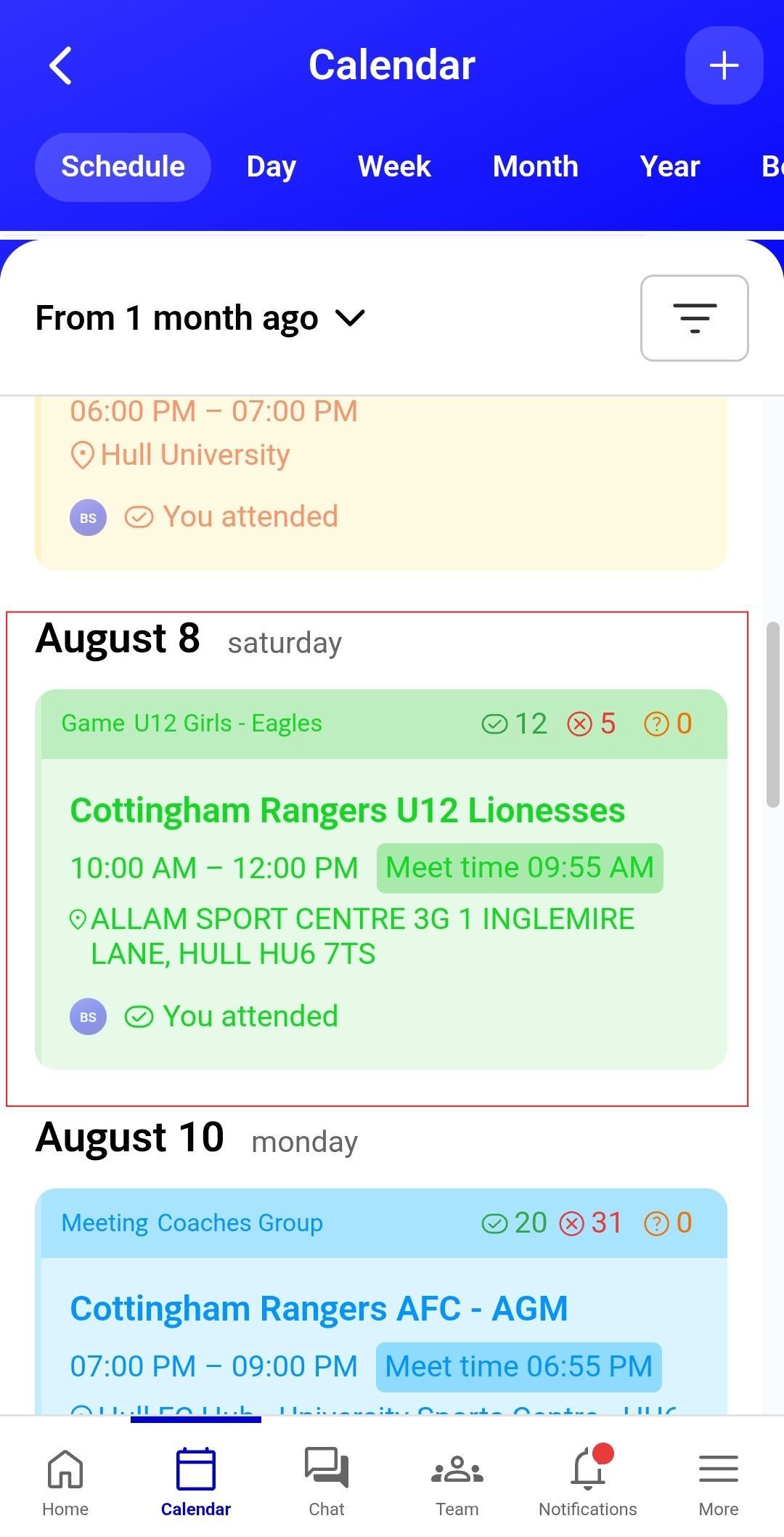
In the calendar view, you can see each event, including the start time and the number of participants who have accepted, declined or not yet responded.
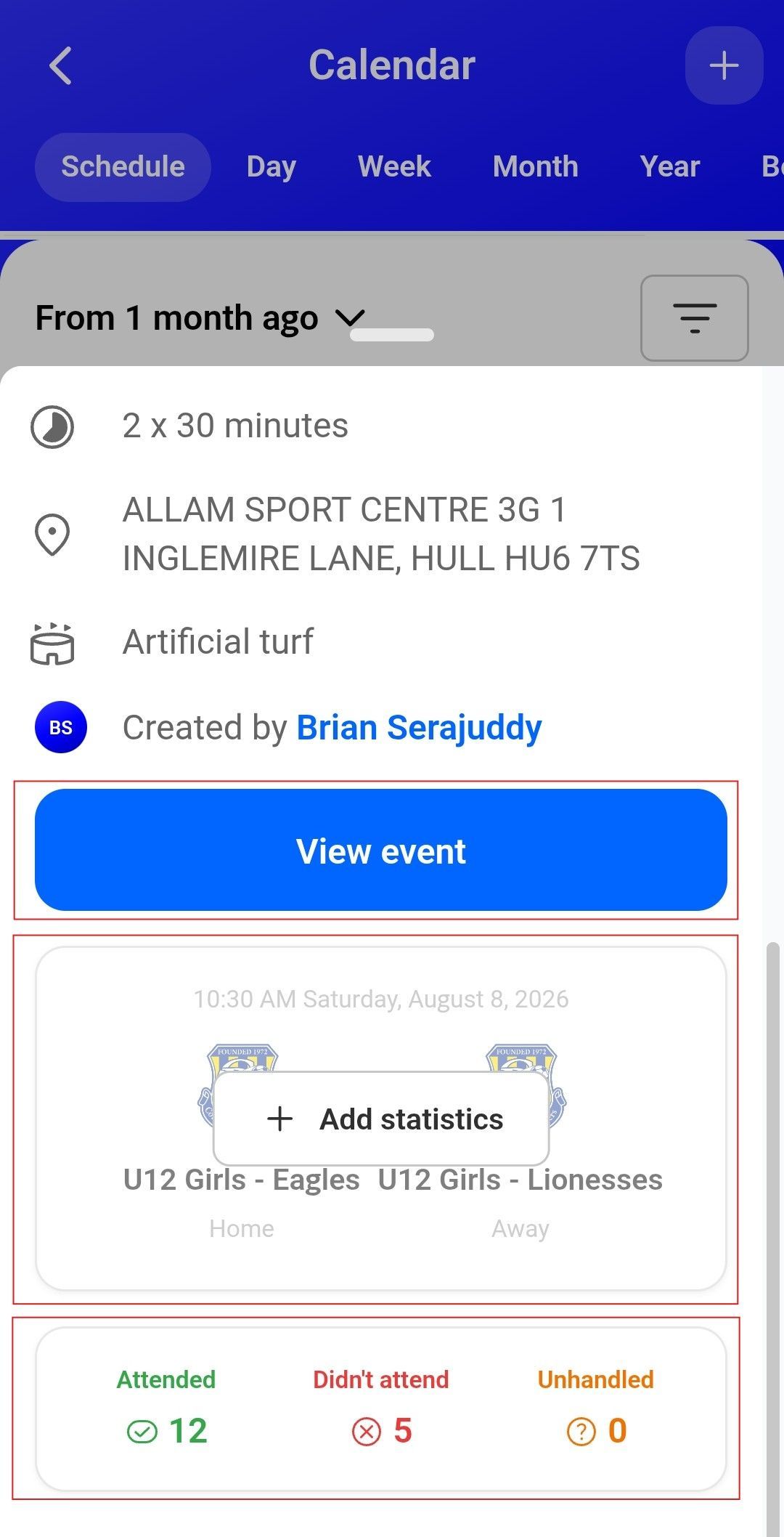
Selecting an event will open a more detailed summary, showing the location, time and participant responses, including who has accepted, declined or not yet responded.
Clicking View Event will open the full event details, where coaches can see more information and manage the event if required.
Clicking Add Statistics will allow you have match statistics as well the match day line ups and subs. Note the lineup can be done before the match.
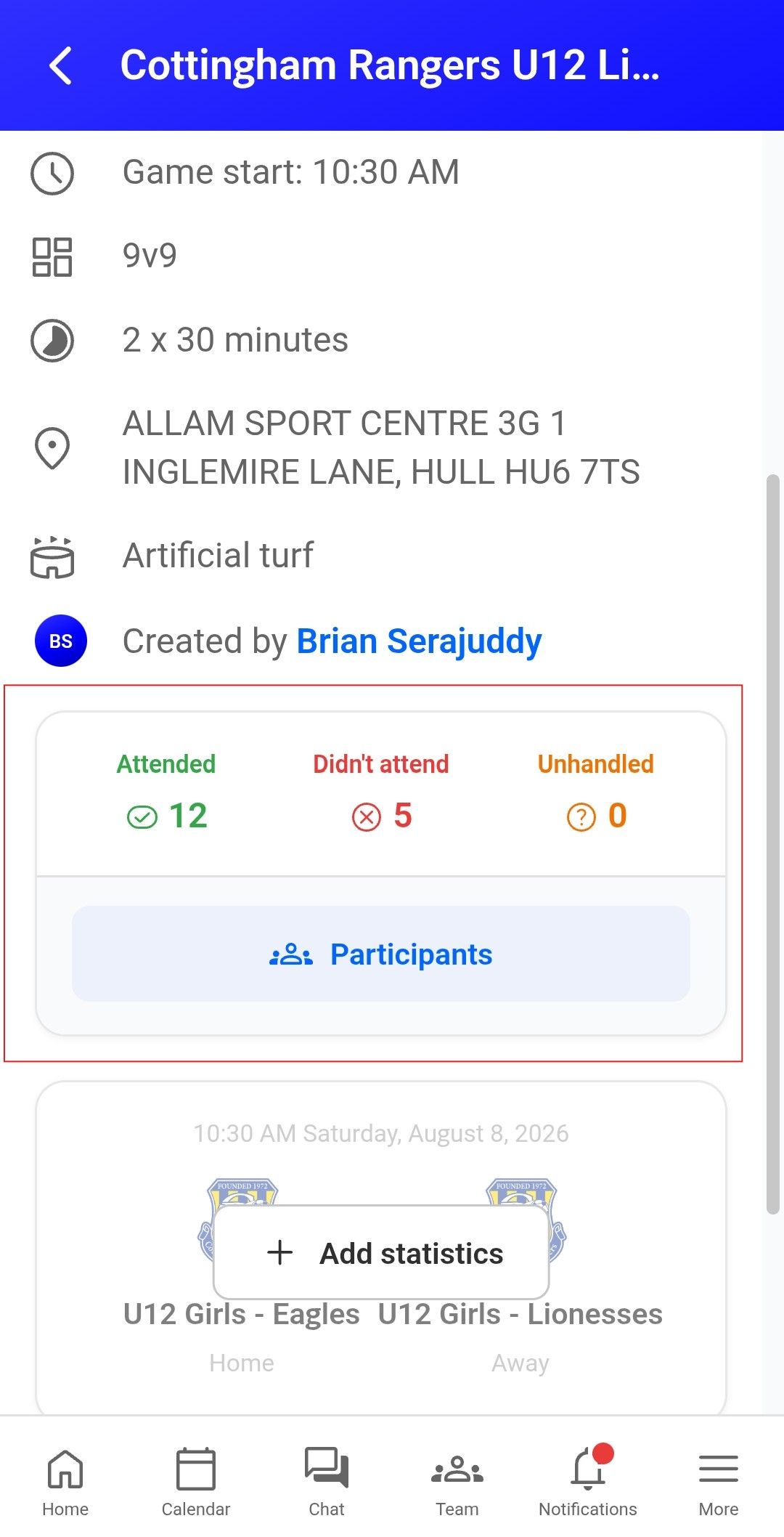
Selecting an event will open a more detailed summary, showing the location, time and participant responses, including who has accepted, declined or not yet responded.
Clicking the Accepted, Declined or No Response numbers will show a detailed list of participants in each category, allowing coaches to see who is attending, who is unavailable and who has not yet responded.
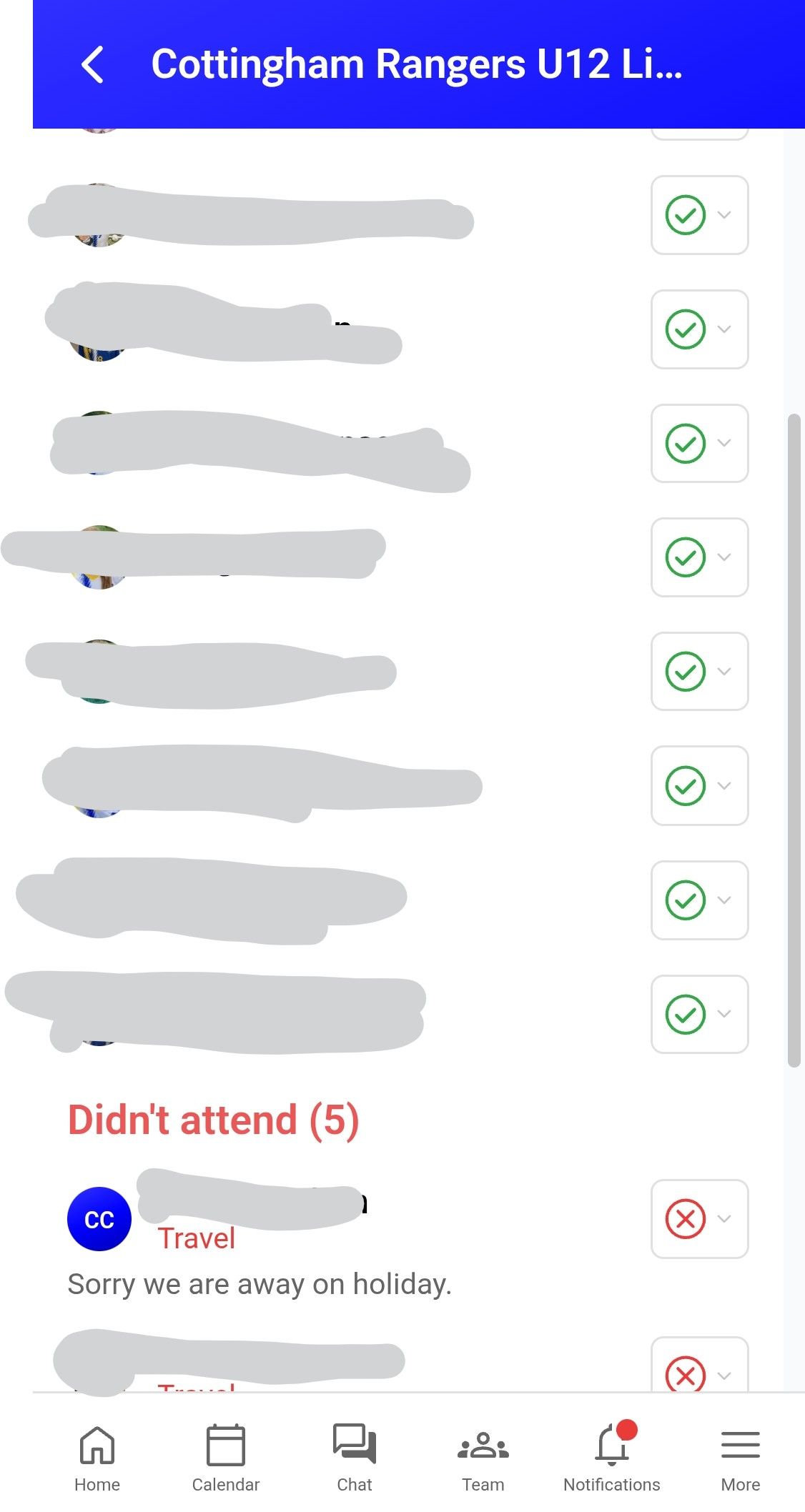
This view provides a detailed list of participant responses, showing who has accepted, declined or not yet responded to the event.
Coaches can also use this screen to send reminders, add additional participants, or manually update a participant’s response status if needed.
